
Order Status Flow
Detailed description of the order statuses in the FastConnect system and the transition flow between them.
Order Status Flow
Overview
Every order placed through the FastConnect API goes through different statuses during its lifecycle. This document describes the meaning of each status and the transition flow between them.
Status Diagram
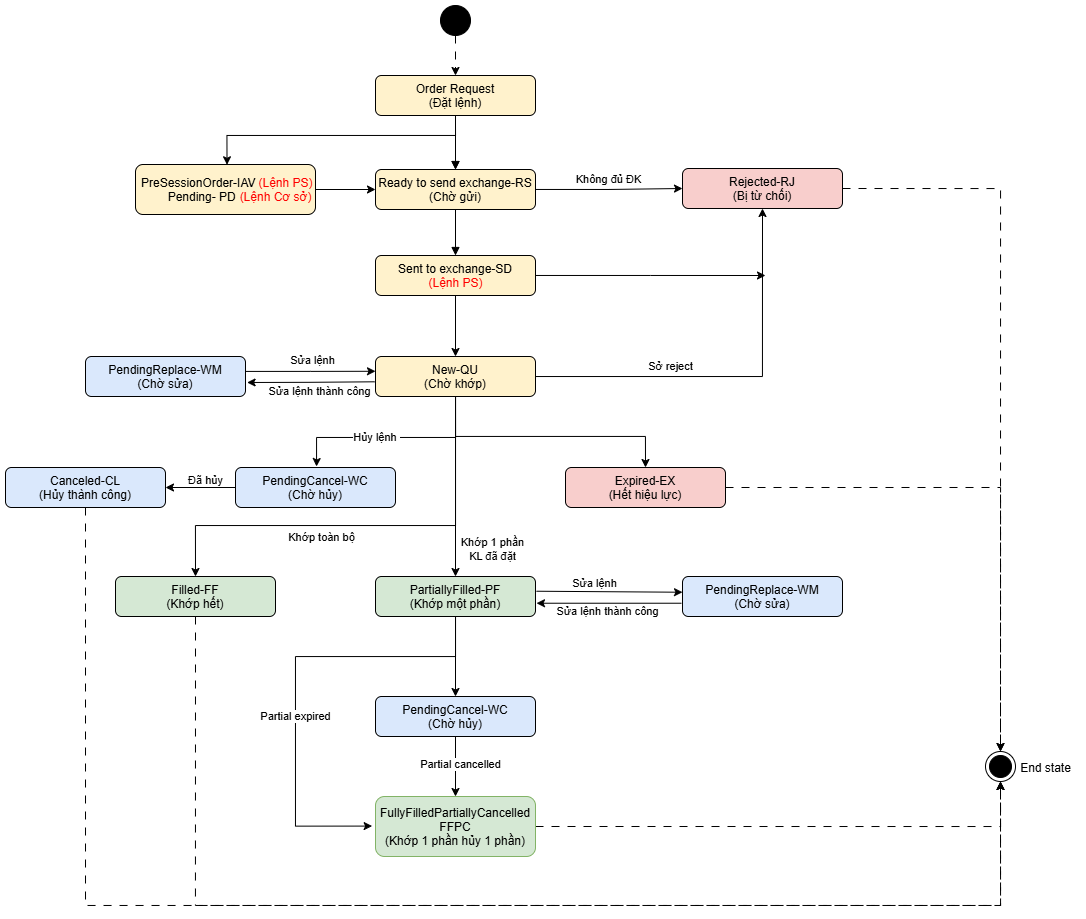
Status Table
| # | FC Status | Full Name | Description |
|---|---|---|---|
| 1 | PD | Pending | Acknowledged status — the base order has been accepted into the system. |
| 2 | RS | Ready to Send | The order is ready to be sent to the exchange. |
| 3 | SD | Sent to Exchange | The order has been sent to the exchange (applies to session orders). |
| 4 | QU | Queue in Exchange | The order is waiting to be matched at the exchange. |
| 5 | WA | Waiting Approval | The order is awaiting approval. |
| 6 | FF | Fully Filled | The order has been fully filled. End state. |
| 7 | PF | Partially Filled | The order has been partially filled; the remaining quantity continues to wait to be matched. |
| 8 | FFPC | Fully Filled Partially Cancelled | The order has been partially filled and the remaining quantity has been cancelled. End state. |
| 9 | WM | Waiting Modify | The order is awaiting modification (price or quantity). |
| 10 | WC | Waiting Cancel | The order is awaiting cancellation. |
| 11 | CL | Cancelled | The order has been cancelled successfully. End state. |
| 12 | RJ | Rejected | The order was rejected (ineligible, invalid parameters, etc.). End state. |
| 13 | EX | Expired | The order has expired or was rejected by the exchange. End state. |
| 14 | IAV | PreSessionOrder | Pre-session order (PS order) — placed before trading hours, waiting to be sent when the session opens. |
| 15 | SOI | PreSessionStopOrder | Pre-session stop order — a stop order placed before trading hours. |
| 16 | PAS | WaitingApprovalStopOrder | A stop order awaiting approval. |
Detailed Transition Flow
Placing a New Order
- When a consumer sends an order placement request, the system records the order with the status:
- PD (Pending) for a base order
- IAV (PreSessionOrder) for a pre-session order
- The order transitions to RS (Ready to Send) when it is ready to be sent to the exchange.
- If it is ineligible (insufficient margin, invalid parameters, room violation, etc.) → RJ (Rejected).
- The order is sent to the exchange → SD (Sent to Exchange), then queued to wait for matching → QU (Queue in Exchange).
Order Matching
- Fully filled → FF (Fully Filled). End.
- Partially filled → PF (Partially Filled). The remaining quantity continues to wait to be matched.
Modifying an Order
- From the QU or PF status, the consumer can send an order modification request.
- The order transitions to WM (Waiting Modify).
- When the modification succeeds, the order returns to its previous status (QU or PF) with the updated information.
Cancelling an Order
- From the QU status: cancel the order → WC (Waiting Cancel) → CL (Cancelled). End.
- From the PF status: cancel the remaining quantity → WC → FFPC (Fully Filled Partially Cancelled). End.
Expiration
- An order rejected at the exchange → EX (Expired). End.
- A partially filled order (PF) that reaches the end of its validity period → FFPC. End.
End States
| Status | Meaning |
|---|---|
FF | The order was fully filled — the trade is complete. |
FFPC | The order was partially filled; the remaining quantity was cancelled or expired. |
CL | The order was fully cancelled. |
RJ | The order was rejected from the outset. |
EX | The order expired or was rejected by the exchange. |
subscribe/unsubscribeWS
Subscribe/unsubscribe to order/portfolio notifications on the same connection — **required** to receive the real final order status after `order.place`/`order.amend`/`order.cancel` has responded `PD` (see "Place/amend/cancel orders: fast acknowledgment, result arrives later" at the top of this document). This message requires no signature and carries no `id`. This API **only supports channel `TRADING`**, with 2 topic types: - `order.{accountNo}` — order match and partial-match notifications. - `portfolio.{accountNo}` — asset/portfolio change notifications, **derivative accounts only (suffix 8)**. Both notification types use the same `data` structure as channel `TRADING` on the FastConnect WebSocket API (market data) — see field details at [Sub/Unsub Trading Data](/en/docs/api-reference/subscribeUnsubscribeTradingData). **Note:** every topic must name a specific `accountNo` — **the `*` wildcard is not supported**, and that account must be owned by the API Key in use (you cannot subscribe to another customer's account data). **Subscribe sample:** ```json { "method": "SUBSCRIBE", "channel": "TRADING", "topics": ["order.0901351", "portfolio.1231996"] } ``` **Ack:** ```json { "method": "SUBSCRIBE", "channel": "TRADING", "status": "ok", "message": "Subscribed to 2 topic(s)" } ``` If `status: "error"`, `message` describes the reason (malformed topic syntax, missing permission, or an account not owned by the caller). **Sample notification** (`order.{accountNo}`): ```json { "channel": "TRADING", "topic": "order.0901351", "data": { "eventType": "orderEvent", "clientRequestId": "req-0001", "orderId": "ORD123456", "orderStatus": "FF", "...": "..." } } ```
Conditional Order Reference
Detailed guide on how to place conditional orders (FCO) via the FastConnect API, including order types, parameters, and examples.